What is System Data on a Mac?
Why the grey System Data slice gets so big, what purgeable space and APFS snapshots really are, and which parts you can safely get back.
System Settings → General → Storage often shows a huge grey slice called System Data, sometimes 100 GB or more. It sounds like macOS itself, but most of it isn’t. It’s simply everything macOS couldn’t put in another category.
What’s actually in System Data
The label covers several very different things:
- macOS itself. The read-only system volume, plus Preboot, Recovery and downloaded updates waiting to install. You can’t and shouldn’t touch these.
- Swap and the sleep image. macOS writes memory to disk when RAM runs short, and keeps a copy of memory for deep sleep. These live on a separate VM volume.
- Caches and logs.
~/Library/Caches,~/Library/Logsand their system-wide equivalents. Mostly safe to clear; apps rebuild what they need. - Developer and tool data that isn’t in a recognised folder. Docker’s disk image, local AI models (
~/.ollama, LM Studio), package caches like~/.npmand~/.cache, and many hidden folders. - Local snapshots. Time Machine and some updates keep APFS snapshots on your disk.
So System Data is a mix of things you can’t touch, things macOS manages on its own, and things you could clear today.
Purgeable space
macOS reports two kinds of free space. Free is space nothing uses. Available is free space plus what macOS is willing to delete when something needs room: local snapshots, iCloud files that are also stored in the cloud, and some caches. The difference is called purgeable.
You can see both numbers in Finder: select your disk and press ⌘I. “Available” is usually larger than the free space other tools show. That’s why two disk tools can disagree by tens of gigabytes without either being wrong.
Purgeable space isn’t wasted. macOS clears it automatically when an app asks for room, so there’s usually nothing to do. It only gets in the way when an installer checks free space rather than available space.
APFS snapshots
APFS can freeze the state of a volume in a snapshot. A snapshot takes almost no space at first, but every file you change or delete afterwards keeps its old blocks around as long as the snapshot exists. Delete a 20 GB folder while a snapshot holds it, and the space doesn’t come back.
Time Machine makes local snapshots about every hour while your backup disk isn’t connected, and keeps them for about a day. macOS updates make one before installing. To list them:
tmutil listlocalsnapshots /Local snapshots count as purgeable. macOS removes them when space runs low, and they disappear on their own after about 24 hours. If you need the space right now, you can thin them:
tmutil thinlocalsnapshots / 999999999999 4That asks macOS to free as much as it can from local snapshots, at the highest urgency. Your backups on the external disk aren’t affected. Don’t use diskutil apfs deleteSnapshot on snapshots you didn’t create.
What you can safely get back
- Caches, logs and build output: yes. See Clean node_modules, Docker and other dev caches and What’s safe to delete in Xcode.
- Docker and simulators: yes, with their own commands. See Docker and simulator disk space.
- Swap: it shrinks after you quit memory-hungry apps or restart. Leftover dev servers are a common cause; see Leftover dev servers and agent sessions.
- Snapshots and purgeable space: leave them to macOS unless you need the space this minute.
- The system volume: no.
How Furl shows it
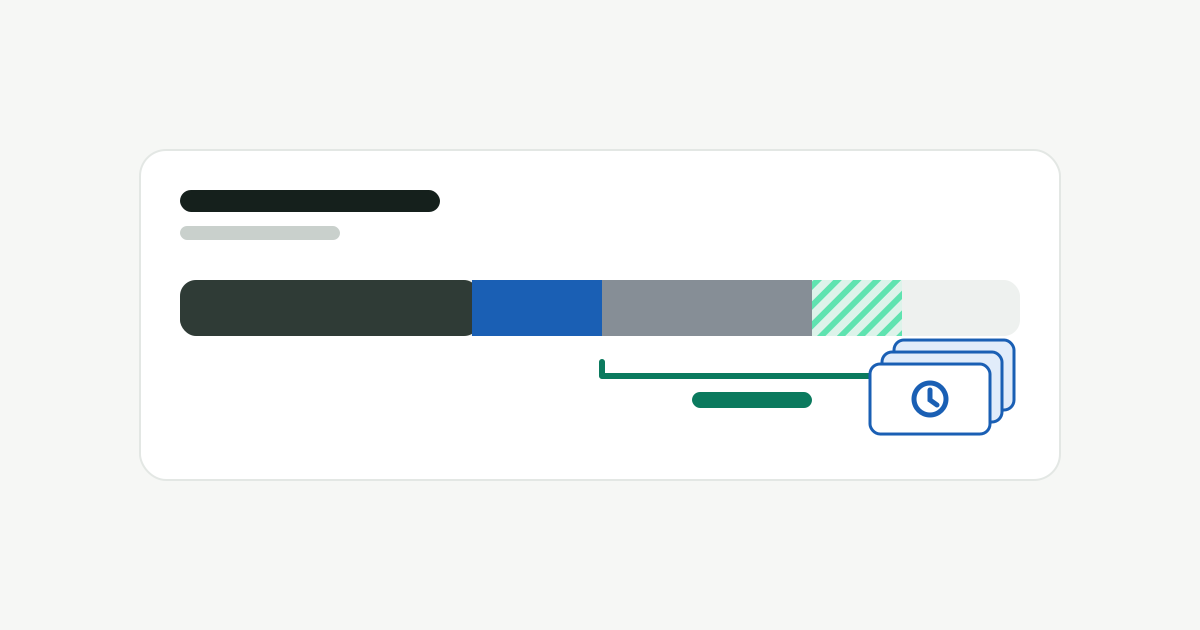
Furl’s storage bar splits your disk into named slices instead of one grey block. Click any slice and it explains what’s in it and where to go next:
- macOS & system: the system volume, Preboot, Recovery, updates and the VM volume with swap, measured with
diskutil. Furl never cleans this. - Purgeable: the gap between available and free space, shown as an estimate. Usually nothing to do.
- Apps: the app bundles in /Applications and ~/Applications.
- Caches & junk: what Furl’s scans found it can clean, such as caches, build files, merged worktrees, duplicate copies and leftovers from deleted apps.
- Your files & other: everything else, mostly your own data. It’s what’s left after the measured slices, so it’s an estimate.
- Free.
Grey is what you keep. Colour is what you could clear. The numbers are read on your Mac. Nothing is uploaded.
For a step-by-step look at finding big folders yourself, see Where did my Mac’s disk space go?