Uninstall Mac apps completely
Dragging an app to the Trash leaves its caches, containers, preferences and logs behind. Where apps keep their files, and how to remove them all safely.
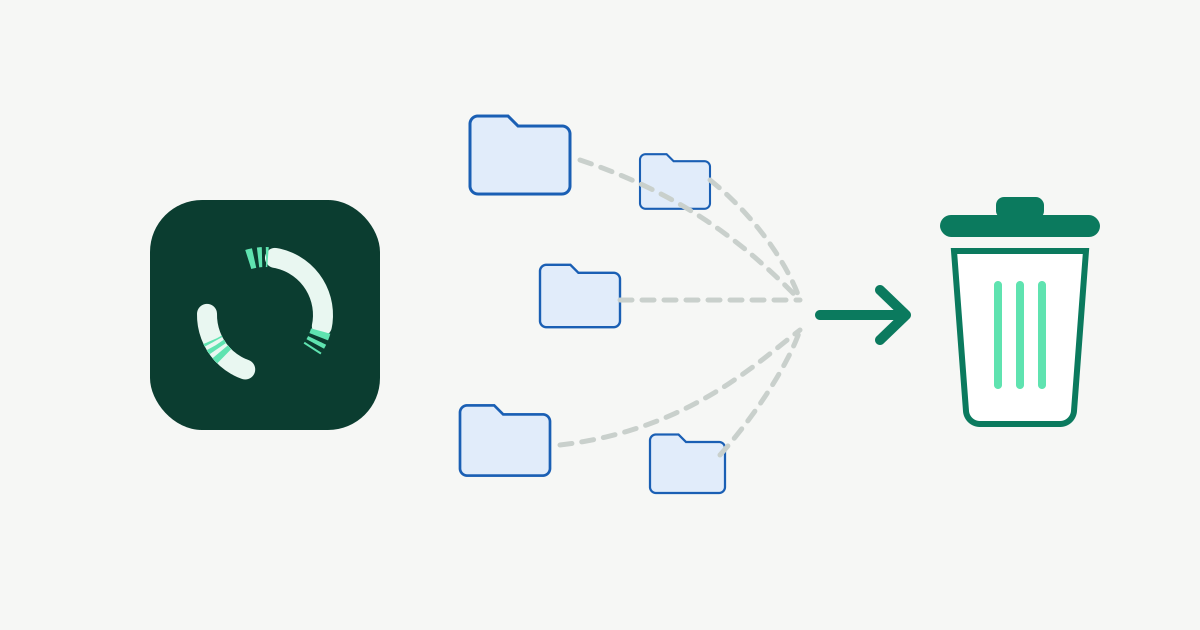
On a Mac, uninstalling usually means dragging the app to the Trash. That removes the app itself, but not the files it created while you used it. For a small utility that’s a few kilobytes. For a browser, a chat app, a video editor or an IDE it can be several gigabytes, and those files stay after the app is gone.
Where apps keep their files
Almost everything lives in your user Library, ~/Library. It’s hidden in Finder; open it with Go → Go to Folder… and type ~/Library. Folders are usually named after the app or its bundle identifier, such as com.tinyspeck.slackmacgap.
Application Support: the app’s real data, such as databases, downloads, plug-ins and offline files. Safe to remove once the app is gone, but it’s what you’d lose if you reinstall.Caches: rebuildable caches. Always safe.Containers/<bundle id>: everything a sandboxed (App Store) app stores, in its own mini home folder. Safe.Group Containers: data shared between apps from the same developer. Only remove it if no other app from that developer is left.Preferences/<bundle id>.plist: settings. Safe.Saved Application State: the windows to reopen at launch. Safe.Logs: log files. Safe.WebKitandHTTPStorages: web view storage and cookies. Safe.
Some apps also install things outside ~/Library: login items and background helpers in /Library/LaunchAgents or /Library/LaunchDaemons, privileged helpers in /Library/PrivilegedHelperTools, or system extensions. If an app came with its own uninstaller, use that for these parts.
Why dragging to the Trash isn’t enough
- The data is usually bigger than the app. Chat apps and browsers keep hundreds of megabytes of cache; editors keep indexes; media apps keep render files.
- Leftovers pile up over the years. Apps you tried once and deleted in 2021 can still have folders in
Application SupportandContainers. - A clean reinstall isn’t clean. If an app misbehaves and you reinstall it, the old preferences and data come straight back.
Doing it by hand
-
Quit the app. Check the menu bar too, since many apps keep running there.
-
Find its bundle identifier:
osascript -e 'id of app "AppName"' -
Search your Library for the app name and the bundle identifier:
find ~/Library -maxdepth 3 -iname "*appname*" 2>/dev/null -
Move the app and the matching folders to the Trash. Keep
Application Supportif you might come back and want your data. -
Empty the Trash once you’re sure everything still works.
Be careful with names that are too short or too generic. Searching for “Notes” or “Code” matches far more than one app. Never remove anything named com.apple.*.
How Furl handles it
The Apps & Leftovers screen shows each app’s full footprint: the app itself plus everything it keeps in your Library, split into Application Support, Containers, Caches, Logs, Preferences & saved state, and Web data. Sort by total size or by when you last used each app. Three tabs:
- Footprint: every app with its total size. Select one to see what each part holds and choose what to remove with it: the app only, or the app and its data.
- Unused 90+ days: apps you haven’t opened in three months or more, the usual candidates.
- Leftovers: Library folders from apps you already deleted.
If you want to keep an app but get its space back, you can clear just the parts that rebuild themselves, like caches and logs.
- If the app is running, Furl asks it to quit first. If it doesn’t quit, for example because of unsaved changes, nothing is removed.
- Apple’s own apps are managed by macOS and can’t be removed here.
- Everything goes to the Trash by default, so you can undo. (Settings has a delete-permanently option; it’s off unless you turn it on.)
The Leftovers tab lists Library folders that no longer belong to any installed app. Matching is by name, and some apps keep data under a name that doesn’t match their bundle, so Furl asks you to review that list before clearing it. Folders that belong to Apple or macOS, and shared Group Containers, are never flagged as leftovers.
For the rest of the space your Library holds, see What is System Data on a Mac?