Leftover dev servers and agent sessions eating your memory
Forgotten dev servers, watchers and idle AI-agent sessions quietly hold gigabytes of memory. How to see what they cost, and how to clear them without breaking anything.
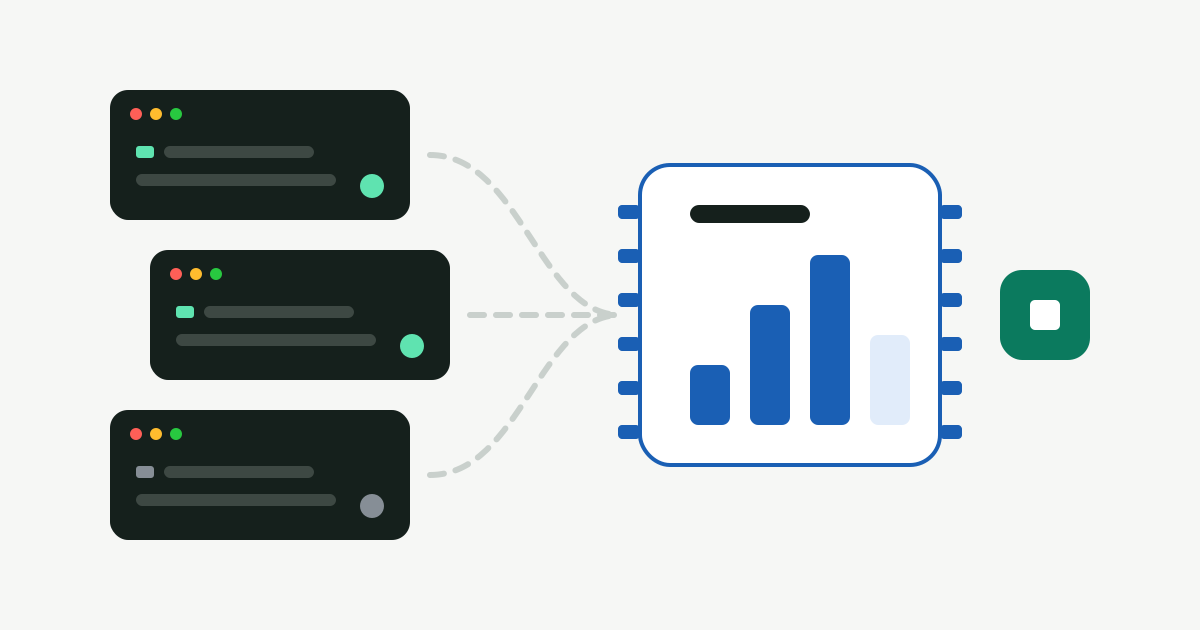
If your Mac feels slow and the fans spin up even though you “closed everything”, look at memory, not disk. A day of work with coding agents can leave a dozen processes behind: a Vite server here, a tsc --watch there, a Python worker, two language servers, and three agent sessions you meant to come back to. Each one only holds a few hundred megabytes, but together they can take several gigabytes.
This guide is about that memory. For finding and stopping one process on a port, see Stop dev servers your AI agents left running.
Why memory matters even with plenty of RAM
macOS uses spare memory well, so “memory used” alone isn’t a problem. The trouble starts when active work runs short and macOS starts compressing memory and writing it to swap on your disk. Then apps pause, builds get slower, and swap files show up as System Data. The quickest fix isn’t more RAM. It’s to stop holding memory for things nobody is using.
See what’s holding memory
Open Activity Monitor → Memory and look at the Memory Pressure graph at the bottom. Green is fine. Yellow or red means macOS is squeezing.
Then sort by Memory and look for developer processes: node, bun, deno, python, ruby, java, esbuild, watchman. Select one and click ⓘ → Open Files and Ports to see its working folder and any port it’s listening on.
From Terminal, the same view sorted by memory:
ps -axo pid,ppid,rss,etime,command -m | head -20- rss is resident memory in kilobytes.
- etime is how long it has been running.
- ppid 1 means its parent is gone and macOS adopted it. A dev server with ppid 1 that’s been up for two days is almost certainly a leftover.
To see which of those also hold a port:
lsof -nP -iTCP -sTCP:LISTENAgent sessions are different
An open agent session (Claude Code, Codex, Gemini CLI and others) isn’t a leftover. It’s a running program with its own memory and often a language server or two. Leaving ten idle sessions open in old terminal tabs can cost as much as the servers they started. Most agents can pick up a session again later (claude --resume, codex resume), so ending an idle one loses nothing.
Stopping things safely
- Ask first.
kill <pid>sends SIGTERM, which lets the process save state, close files and remove lock files. Only usekill -9if it ignores you. - Stop the parent, not just the child. Killing a worker often makes its supervisor start a new one. Find the top of the tree with
ps -o ppid= -p <pid>. - Leave system processes alone. Anything owned by root or another user, or living under
/Systemor/usr/libexec, belongs to macOS. - Check it’s still the same process. PIDs get reused. If some time has passed since you looked, check the command again before you kill it.
How Furl does it
The Processes & Sessions screen does that bookkeeping for you:
- Leftovers. It lists process trees that an agent session started, whose agent has since exited, and that nothing is attached to any more. Each row shows the agent that started it, the project folder, its port, how long it has run and how much memory it holds, with child processes grouped under it.
- Sessions. Open sessions of Claude Code, Codex, Cursor, Gemini CLI and Copilot, among others, marked working or idle. A working session can’t be ended. Ending an idle one asks the agent to exit gracefully and shows how to resume it.
- Clean quits first. Stop sends SIGTERM. Anything that ignores it can be force quit afterwards, as a separate choice.
- Hard limits. It never signals PID 1, itself, its own parent processes, processes of other users, or a PID that has been reused since the scan.
- Conservative matching. A process is only called a leftover if it can be tied to an agent and that agent is gone. A server you started yourself in a normal terminal isn’t listed.
- Optional automation, off by default. You can have it end sessions that have been idle for a while, or stop leftovers after an hour.
It also shows how much memory you’ve freed, and stopped processes appear in History. It all runs on your Mac.