Remove merged git worktrees safely
Agents and parallel branches leave worktrees behind, each with its own build output and dependencies. How to find the merged ones and remove them without losing work.
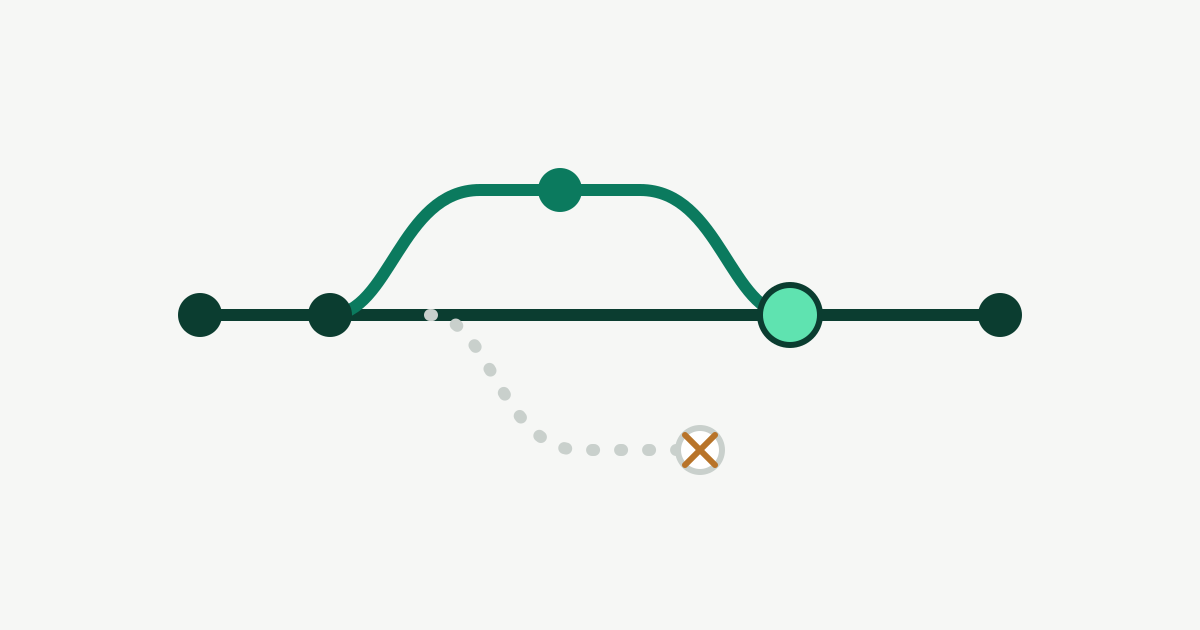
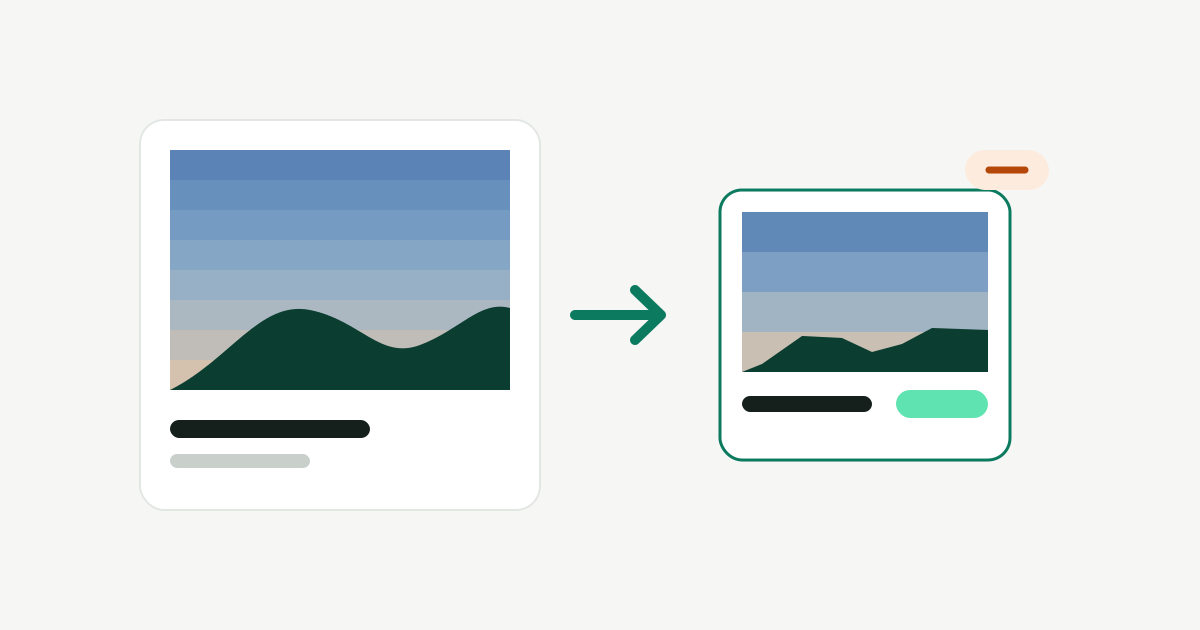
Git worktrees let you check out several branches at once, each in its own folder. Coding agents use them heavily. Each worktree is a full checkout, and once you’ve built in it, it often has its own node_modules or build folder too, so a handful of old ones can easily reach several gigabytes.
List them
From inside the repository:
git worktree listFind the ones whose branch is merged
git branch --merged mainAny worktree whose branch shows up here has had all of its commits merged. One catch: squash and rebase merges don’t show up, because the commits on main are new ones. For those, check whether the branch’s pull request was merged, or compare the content:
git diff main...<branch> --statAn empty diff means nothing on that branch is missing from main.
Remove one
git worktree remove <path>Git refuses if the worktree has uncommitted changes, which is exactly the safety net you want. Only add --force once you’ve looked at what would be lost.
If you already deleted a worktree folder by hand, clean up git’s records with:
git worktree pruneHow Furl handles it
Furl finds worktrees across your projects and marks each one as merged, squash-merged or still active. It works this out from your local git history only: squash and rebase merges are detected by comparing content, the same idea as the git diff check above, so nothing is looked up online.
Ones with uncommitted changes are never selected. Removing one moves the folder to the Trash and tidies git’s records, so you can still get it back. The menu bar’s Clean safe items includes merged worktrees with no uncommitted changes, alongside caches rated Safe. They go to the Trash too, and the run is listed in History so you can undo it.