Lossless vs lossy compression: what's safe to shrink
Lossless compression makes files smaller with nothing lost. Lossy compression makes them much smaller by throwing detail away. How Furl's Compress and Shrink do each, and what lossy can cost you.
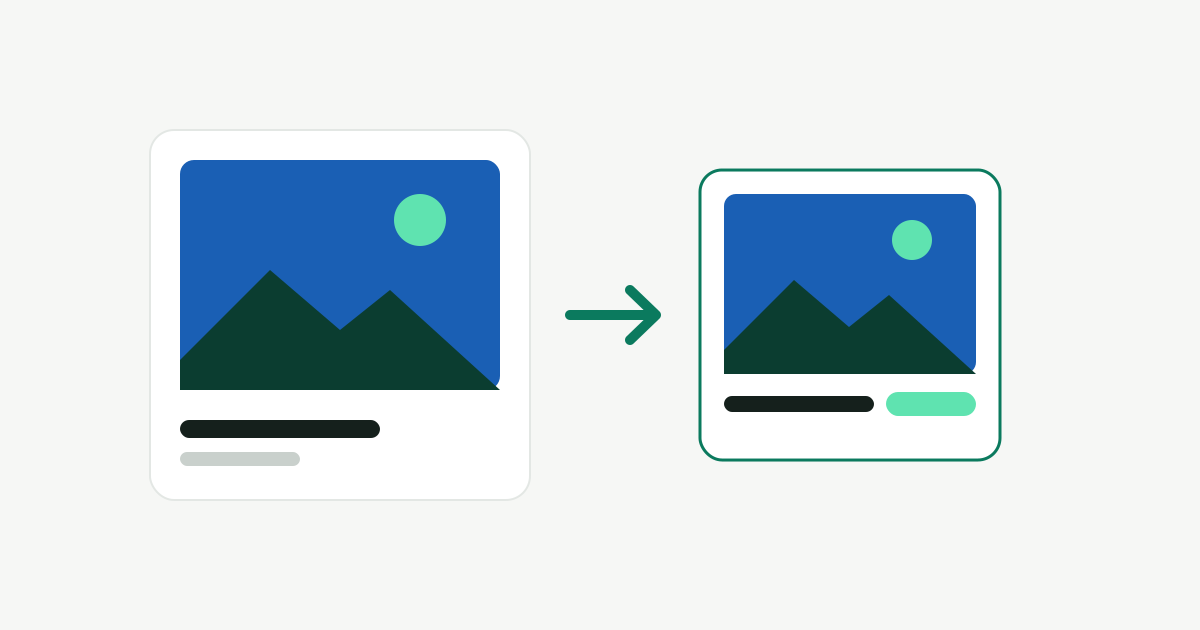
Deleting isn’t the only way to get space back. Many files can be made smaller instead. There are two very different ways to do it, and Furl keeps them apart: Compress is lossless, Shrink is lossy and off until you turn it on.
Lossless: smaller, nothing lost
Lossless compression stores the same data more efficiently. When you open the file you get back exactly the same pixels, sound or text, bit for bit. Savings are usually 10 to 40%, and because nothing is lost, it’s safe for anything, originals included.
What Compress does, format by format
- Folders and apps you rarely open: the transparent compression built into macOS (APFS with LZFSE). Files stay where they are and open normally; they just take less disk. Furl compresses a copy, checks every file’s content, permissions, dates and extended attributes against the original, and for apps also runs
codesign --verifybefore swapping it in. - PNG and TIFF: re-saved with Apple’s ImageIO, and with oxipng or zopflipng if you have them installed. TIFFs get LZW compression. The smallest result is kept only if its pixels match the original exactly.
- GIF: optimised with gifsicle (if installed), with frame timing checked.
- JPEG:
jpegtranrebuilds the file’s internal tables without re-encoding the picture. Same pixels, fewer bytes. Needs jpeg-turbo from Homebrew. - PDF:
qpdfrebuilds the file with compressed object streams. The result must passqpdf --checkand keep the same pages and text. Encrypted PDFs are skipped. - WAV and AIFF: converted to ALAC (Apple Lossless) with macOS’s own
afconvert, then decoded and compared sample for sample. 32-bit float audio is skipped, because ALAC can’t store it losslessly. - Office, iWork and ZIP files: repacked at maximum compression. Every entry must come back byte for byte, and the archive must pass
unzip -t.
Optional tools are never bundled. If one isn’t installed, that format is simply skipped and the app says which tool would help.
Why not zstd, Brotli or 7-Zip?
They often compress better, so it’s a fair question. The answer is about where the compression lives.
Compress shrinks files in place: they keep their names, open in the same apps, and nothing needs unpacking. That only works if macOS itself can read the compressed data, and APFS transparent compression supports exactly three codecs: zlib, LZVN and LZFSE. A folder compressed with zstd or Brotli would be unreadable to Finder and every other app. LZFSE is the best of the three for space and still fast to read, so it’s what Furl uses.
A 7-Zip or .tar.zst archive is a different thing: one file you have to unpack before you can use what’s inside. That’s fine for something you’re putting away for good, but it isn’t “the same files, smaller”. Formats that already contain compressed data (ZIP-based Office files, PNG, PDF) also have to stay readable by the apps that open them, so they’re recompressed with the codec their own format defines.
Lossy: much smaller, detail thrown away
Lossy compression re-encodes a file and discards detail it predicts you won’t notice. A screen recording can shrink by 60% or more and photos often by a third to a half. That’s tempting, but it costs something.
What Shrink does
Shrink lives on the Compress page and is off by default. When you turn it on:
- Photos (JPEG, HEIC): re-encoded with ImageIO at a quality you choose (75% by default), in their own format or converted to HEIC if you prefer, and optionally resized. If you have MozJPEG installed, a JPEG that stays a JPEG at its original size is encoded with both, at about the same measured quality, and the smaller file wins. In our tests ImageIO won at the default 75%, while at 40% MozJPEG came out 13% smaller. MozJPEG is skipped for photos with HDR gain maps or depth data, which it would drop.
- PNG (optional, off by default): reduced to a palette of up to 256 colours with pngquant, if installed. On our test PNGs that made them 57 to 83% smaller: 80% on a UI screenshot, 83% on an interface preview, 57% on a photo-like image. pngquant gives up on its own if the result would be too poor or not smaller, and it converts wide-gamut (P3) colour to sRGB.
- Videos: re-encoded to HEVC (H.265) with AVFoundation, at the original size or scaled down to 4K or 1080p. Videos already in HEVC at that size are skipped.
- PDFs: the images inside are re-saved as JPEG at lower resolution, the same approach as Preview’s Reduce File Size. Text, page count and page sizes must not change.
Shrink’s safety rules
- Preview first. You see a before-and-after comparison and the estimated savings before anything changes.
- Worth it or not at all. A file is only replaced if the new one is at least 15% smaller. Otherwise the original stays untouched.
- Originals go to the Trash. Nothing is overwritten. Undo puts the originals back until you empty the Trash.
- Once only. Every shrunk file is marked, so a second pass never re-encodes it again.
- Hands off by default: Photos libraries and other app libraries are never touched. Files in iCloud Drive, Dropbox, Google Drive, OneDrive and similar folders, files changed in the last 30 days, and files open in another app are skipped unless you allow that folder.
- Details kept. Dates, Finder tags, colour profiles, camera and location data, and HDR and depth data are carried over. A photo whose details can’t be kept is skipped, and a video that loses metadata is rejected.
The risks, plainly
Even with those rules, lossy compression is a trade:
- Quality loss is permanent. Once you empty the Trash, the detail that was thrown away is gone for good. It may look fine on your screen and still show banding, blockiness or blur when zoomed, printed, cropped or edited later.
- Generational loss. Every lossy re-encode stacks on the last. Furl won’t shrink its own output twice, but it can’t know if another app already compressed a file, and editing a shrunk photo and saving it as JPEG again loses more.
- Metadata edge cases. The important fields are kept, but not everything survives: rare maker notes, edit history and some video tracks (chapters, captions) may not carry over. Apps that keep their own copy or edit history, such as Lightroom, Final Cut or photo sync tools, may see a changed file and re-import or upload it again. If you choose to convert JPEGs to HEIC, the file name’s extension changes too, which can confuse scripts or apps that expect
.jpg. - Synced folders. In a synced folder the smaller version replaces the original on every device, and the cloud service’s own version history may be your only way back. That’s why they’re skipped unless you allow them.
A sensible rule
Use lossless on anything. Use lossy only where “good enough” really is enough, such as screen recordings, exported drafts or reference photos, and never on the only copy of something that matters. Keep a backup before you shrink anything you care about.