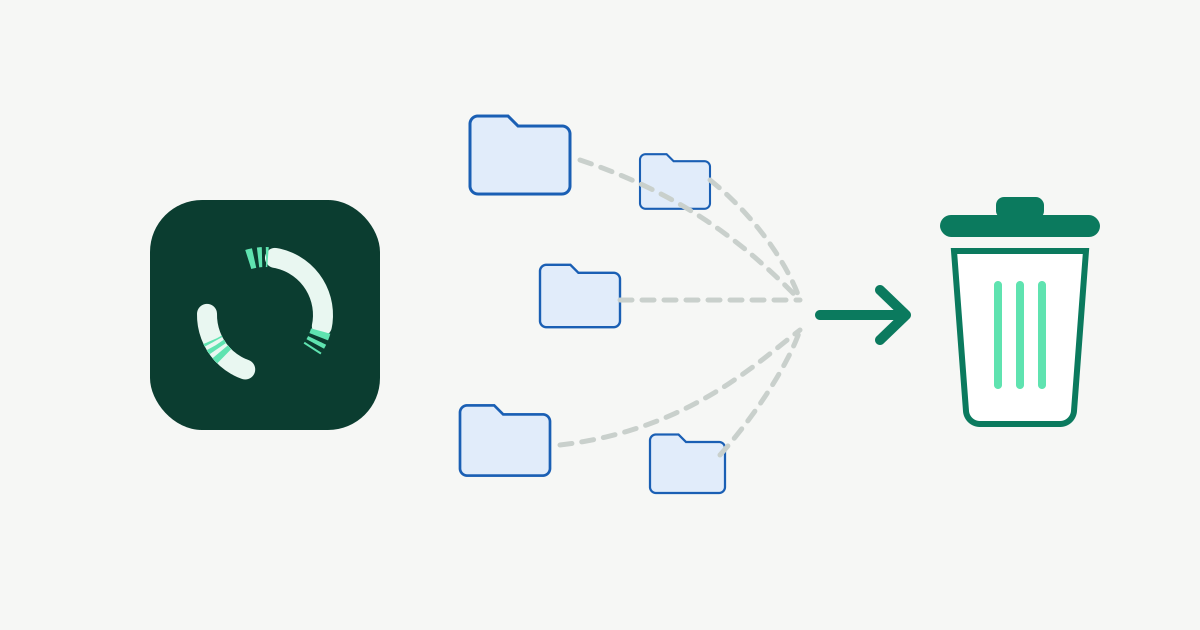
Clean node_modules, Docker and other dev caches
Package manager caches, forgotten node_modules folders, Docker build cache and local AI models: how to see how big they are and clear them safely.
Every tool you install keeps a cache, and every project you clone keeps its own dependencies. None of it is ever cleaned up on its own.
Forgotten node_modules folders
Old projects keep their node_modules forever. This finds every one under a folder and shows its size:
find ~/Code -name node_modules -type d -prune -exec du -sh {} + | sort -hDeleting node_modules is always safe: npm install (or pnpm or yarn) brings it back. Leave the ones for projects you’re working on this week.
Package manager caches
| Tool | See the size | Clean it |
|---|---|---|
| npm | du -sh ~/.npm |
npm cache clean --force |
| pnpm | pnpm store path |
pnpm store prune |
| Yarn | yarn cache dir |
yarn cache clean |
| pip | pip cache info |
pip cache purge |
| Homebrew | du -sh "$(brew --cache)" |
brew cleanup --prune=all |
All of these are download caches. The worst case is that the next install downloads things again.
Docker
Docker keeps everything inside one large disk image, so it shows up as one opaque file in ~/Library/Containers/com.docker.docker. See what’s inside it first:
docker system dfThe build cache is the safest thing to remove:
docker builder prunedocker image prune -a removes every image not used by a container. That’s a lot more aggressive, so you’ll pull them again next time.
Local AI models
Tools like Ollama store models in ~/.ollama/models, often 4 to 40 GB each. List them and remove the ones you’ve stopped using:
ollama list
ollama rm <model>
For Docker images, containers and volumes in more depth, see Free up Docker and iOS Simulator disk space.
How Furl handles it
The Caches & Junk screen finds node_modules and other build output, package caches, Docker data, simulator data and local AI models, and shows the size and the reason for each. Only items rated Safe, the ones that rebuild themselves, are selected for you. Files go to the Trash first.
- Judged by the project, not the folder. A
node_modulesfolder’s own date only changes when its top-level entries change, so in a project you use every day it can look months old. Auto-Sweep instead looks at the newest file in the project around it, skipping dependency, build and.gitfolders, and only clearsnode_modules,.venvorvenvwhen the whole project hasn’t changed in the number of days you set (30 by default). If it can’t tell, it leaves the folder alone. - Docker only when you ask. Docker items run Docker’s own prune commands, which are permanent, so they’re only offered in the main window and never run automatically by Auto-Sweep or the menu bar. Furl never removes volumes or tagged images. It only works with your local Docker engine, never a remote one: if
DOCKER_HOSTor the active Docker context points at atcp://orssh://engine, nothing is listed, and this is checked again right before pruning. - Local AI models are always “review”. They’re big and slow to download again, so they’re never selected or cleaned automatically.
- Collect first, clean once. Add items from here, Worktrees, Large Files or Duplicates to the cleanup tray, look them over together, and clean them in one go. One Undo puts back everything that went to the Trash.